
3. In the Drive list, select a drive letter. (Any available letter will do.)
4. In the Folder box, type the path of the folder or computer, or select Browse to find the folder or computer. To connect every time you log on to your PC, select the Reconnect at sign-in check box.
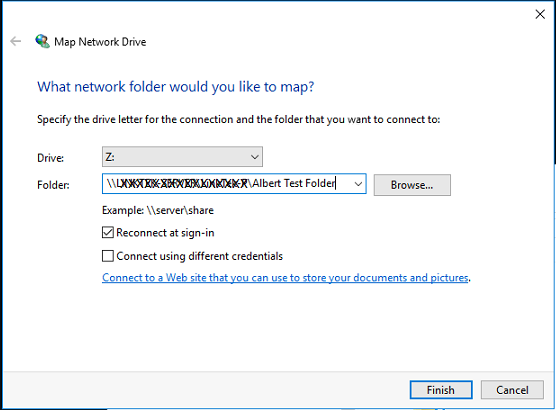
5. Select Finish.
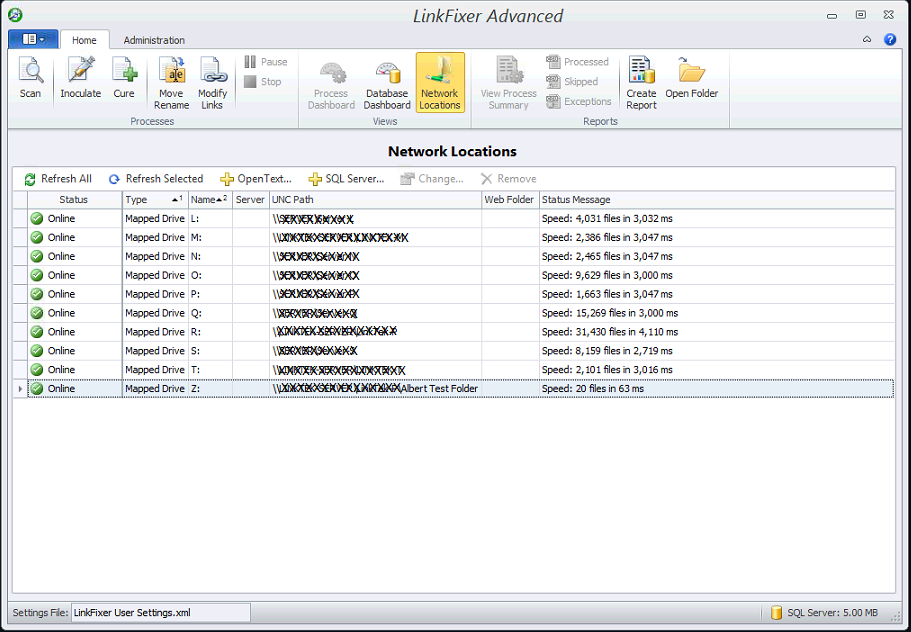
6. Open LinkFixer Advanced, select Network Locations under Home tab. The Status should be Online, the Type is Mapped Drive, you could see the drive letter under name and there's no error message under Status Message.
Note: If you can't connect to a network drive or folder, the computer you're trying to connect to might be turned off, or you might not have the correct permissions. Try contacting your network administrator.